Website Disaster Recovery Plan
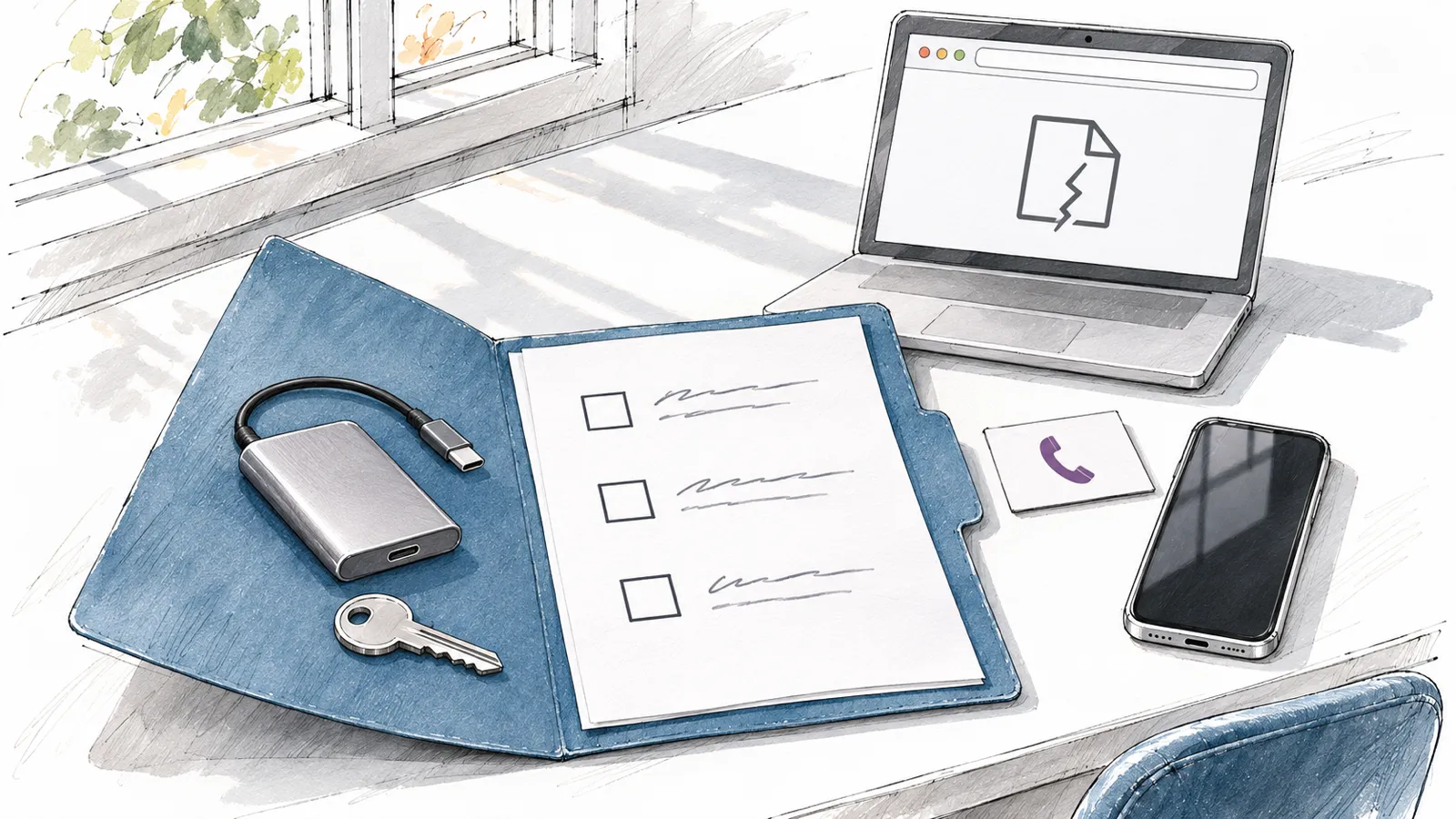
One of the most stressful things I see happen to business owners is when they try to open their website and it’s either offline or they get the white screen of death. Even worse is when you send someone to your website and it’s down, or there’s a message from Google telling them it’s not secure or safe.
What do you do in a situation like that? Most people panic, thinking their whole online business is destroyed. Or they reach out to their host only to be told it’s a WordPress problem and they can’t help with that.
Every business needs a disaster recovery plan, and including your website in that plan is a key piece of the puzzle. Start by asking what you would do if something went wrong with your website.
Website disasters come in different shapes and sizes, so your plan should cover each kind and the steps to fix it:
- Coding errors
- Software conflicts
- Traffic surges
- DDoS attacks
- Hacks, ransomware or infected content
- Server malfunctions
- Natural disasters
Before you start to make a plan, you need a backup. You know, that insurance policy for your biggest marketing asset. Step one is your backup plan.
Website Backup
No website disaster recovery plan can start without backups. Your whole plan is going to be centered around them. With a full backup of your site, you have a way back even in the worst-case scenarios.
Here are three key things you need for a quality site backup:
- Regular schedule. Your site backup should run every day. Most people think you only back up when you add content or update your site. But with how easy backups are today, it’s not unreasonable to have an automated one run daily.
- Offsite location. It’s not enough to have the backup. It needs to be somewhere safe. Backups stored on your server can become corrupt or out of reach if the problem is on that server. There are plenty of ways to send your backup files to cloud storage such as Dropbox, Google Drive or Amazon S3. Even if you rely on your host to run backups, download them and keep them in a safe place.
- Easy restore. You need to be able to restore or move your site to get it live again. Having your site down is stressful enough, and restoring a backup made of files and a database is not easy for most people.
If your backups aren’t set up yet, start with why ignoring website backups is a gamble.
Website Credentials
Gather your credentials and keep them in one secure place, so that should anything happen to you, others can put your recovery plan into action. Here’s how to share passwords safely.
Hosting account. When you sign up for hosting, your provider gives you a few credentials, so be sure to note them. Some hosts let you grant access without giving away your main login. You will have (or need) the following:
- Account login (used for billing)
- Hosting control panel, SFTP or FTP access (used to reach your files and database)
- Database access (if you can’t get in through the control panel or account)
- Customer service number, PIN or security phrase
Domain registrar. Many hosts give you a year of free domain registration with your plan. I strongly recommend you move away from that option, because if you ever need to part ways with your host, you’ll know your domain is safe. The registrar is where you set the nameservers or records that point your domain to your host.
Email provider. Another mistake I see many small business owners make is using their hosting account for email. The reason I don’t recommend it is that your messages are more likely to be blocked as spam, and if your server has a problem, your email will too. I recommend Google Workspace because it’s easy to use and includes Google Docs, calendar and more.
Website professional. Having a WordPress professional on call is a smart move. If something goes wrong, you can ping them to handle problems they’re more familiar with, and you can get back to serving your clients.
WordPress administration. Be careful who you give access to, and know who has access to your site and at what level. Most people have one admin and no other users. Setting up a second admin can help when you can’t log in with the first.
Pro tip: A seasoned web developer can often get access to your site by creating a user in the database, and many managed WordPress hosts have single sign-on options.
Documented Processes
When you have documented processes, you don’t have to worry about what to do now or what to do next. A website disaster is no different, especially when there are many moving parts and you may need to contact someone who isn’t in your business every day.
Here are some things to write down and keep in a document you can share:
- Backups (where they are stored, how to get to them, how often they run)
- Scenarios (server issue, site hack, software break, natural disaster)
- Contacts (who they are, how to reach them, who to call when)
- Customer records (contact list, emails, notes, purchases)
As you bring on help from designers, developers and others, you can add to it or hone it with their input.
Conclusion
Commit to making a recovery plan no matter the size of your business. Your plan needs to be in writing and reviewed regularly, so when disaster strikes you’re ready to hit it head-on.